Digitally sign PDF documents with your own digital signature certificate. Dragdox supports PFX/PKCS#12 files, compatible USB DSC tokens and the Windows certificate store. Sign on Windows 10/11, Ubuntu or Debian while keeping your PDFs on your computer.
Create PAdES signatures that Adobe Acrobat Reader can read and validate. Customize the visible signature with text, an image and a Green Tick. Start free with a light watermark on every page, or choose Premium for watermark-free output, trusted timestamping and long-term validation.
Digitally sign a PDF on Windows or Linux with your PKCS#12 / PFX certificate file, or with a USB signing token through its manufacturer’s PKCS#11 driver. On Windows, certificates in the Windows certificate store work too.
A desktop signer, not a cloud upload.
Open and sign documents in the Dragdox desktop app on Windows, Ubuntu or Debian. This website never uploads, stores or signs your PDFs.
Place a visible signature anywhere.
Drag a signature rectangle on any page, or use an existing signature field, and customize the visible text or graphic.
Install Dragdox on Windows, Ubuntu or Debian and choose the document you want to sign.
2
Make your mark
Select your signing certificate and set the signature’s position and appearance.
3
Sign. Save. Send.
Save the signed copy. Activate Premium for output without the Dragdox watermark.
PAdES signatures, timestamps and long-term validation
Acrobat has no current Linux release. Dragdox does the signing part on Ubuntu and Debian — and on Windows — and writes the same standard signature a Windows or macOS Acrobat user would.
PAdES signatures, not a picture of a signature
Dragdox writes an ETSI.CAdES.detached signature into the PDF — the PAdES standard Adobe Acrobat and Acrobat Reader read and validate. It is a real cryptographic signature over the document, not a pasted image.
The same two digital-ID sources
Sign from a PKCS#12 / PFX certificate file, or from a USB signing token through its manufacturer’s PKCS#11 library — the two certificate sources Acrobat also signs from.
Certification levels, timestamps and LTV
Sign for approval, or certify with DocMDP so the document allows no changes, form filling, or form filling and annotations. Premium adds an RFC 3161 timestamp and embeds the certificates’ CRL revocation data for long-term validation.
Dragdox signs on your own computer and never uploads your PDFs. The signature is written into the PDF itself, not stored on a server. Open the file anywhere — Acrobat Reader, Okular, Poppler’s pdfsig — and the signature travels with it.
A visible Green Tick is part of the signature appearance. Whether a PDF viewer trusts a signature depends on the certificate, its chain and the viewer’s validation settings. How to verify a PDF signature.
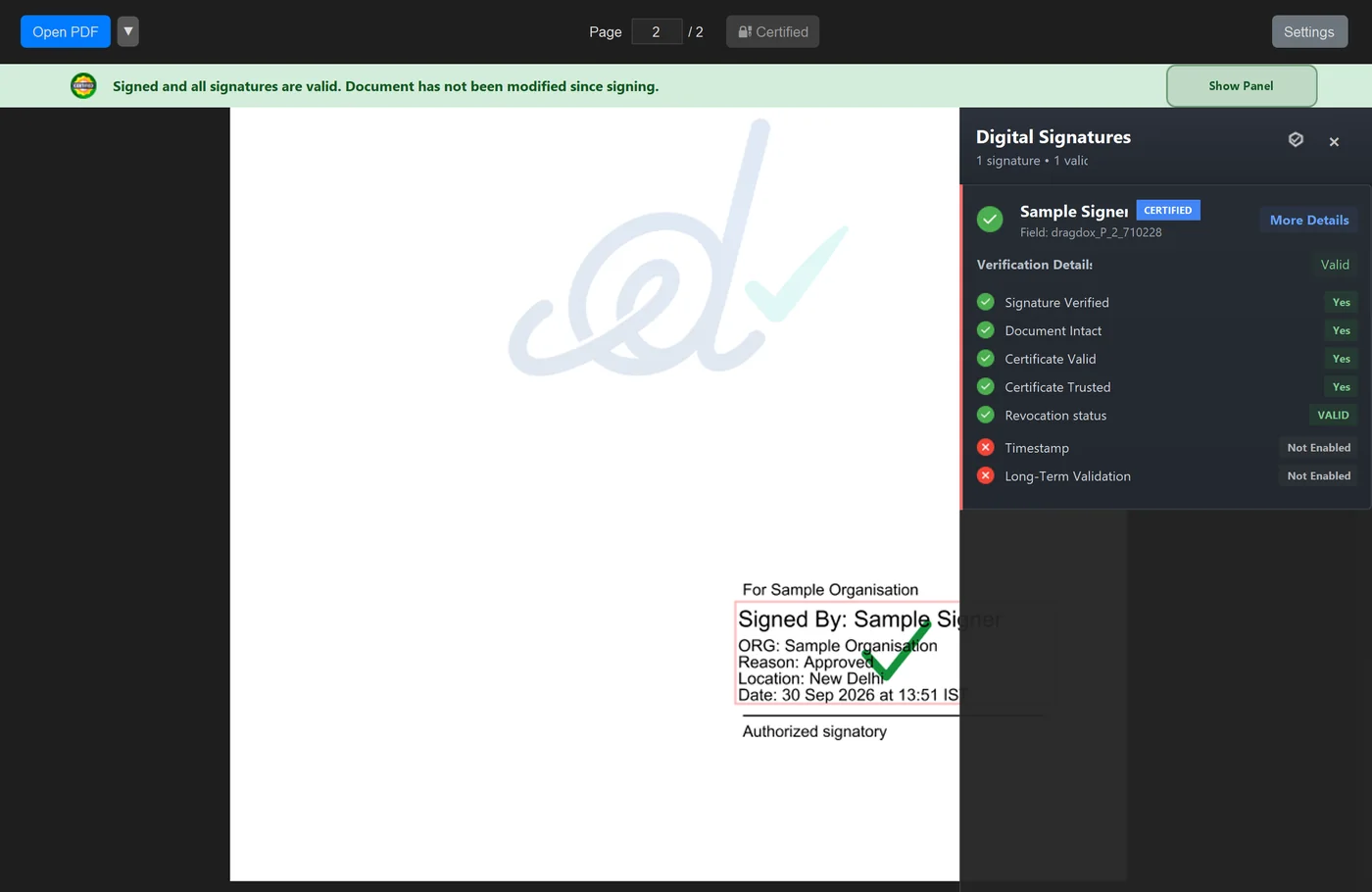
The signature panel after signing. The sample certificate’s root was added to Trust Manager, so it shows as trusted; timestamp and LTV were not used.
Customize your visible digital signature
Place the signature anywhere on the page or in an existing signature field. Show your name and signing details, add a signature image, include the organisation or full subject name, set a reason and location, and add a Green Tick. Save the settings as reusable profiles.
Watermark-free output for new signatures, plus LTV and Timestamp. Green Tick is included in the free version. Choose 1 year (₹1,499), 2 years (₹2,499), 3 years (₹2,999) or perpetual (₹6,899); validity starts when you first activate the key. One payment, no auto-renewal. No promise of future paid upgrades or ongoing support is included.
How does license activation work?
Enter your key in Settings > Activation while connected to the internet. A license runs on one computer at a time. You can move it to a new computer up to two times (three computers in total); after that the key stops working. Uninstalling and reinstalling Dragdox also counts as a transfer: the license must be activated again. Dragdox re-checks the license online about once a day and keeps working offline for up to 7 days between checks.
Will it work on my computer?
Dragdox runs on Windows 10 and 11 (64-bit) and on Ubuntu 20.04, 22.04, 24.04 and Debian 12 (64-bit Intel/AMD). Java 8 is included in both installers. The Linux package is tested on those releases and needs a graphical X11 or XWayland desktop; the Windows installer is tested on Windows 11. Other Debian versions, ARM and 32-bit systems have not been validated.
Do I need a signing certificate?
Yes. A Dragdox Premium license removes new app watermarks and unlocks LTV and Timestamp. It is not a digital signing certificate. You need your own certificate and private key or supported token. USB tokens require their manufacturer’s PKCS#11 driver (.dll on Windows, .so on Linux); on Windows, Dragdox can also use certificates from the Windows certificate store.
Will activation remove watermarks from old files?
No. Existing signed PDFs remain unchanged. Activate Dragdox, then sign the original unwatermarked PDF to produce a clean output.
Does anything need an internet connection?
The website purchase and license activation need internet access. After activation Dragdox re-checks the license about once a day and keeps working offline for up to 7 days between checks. Timestamp services and live certificate-status checks need a network connection.
Will a PDF signed in Dragdox open in Adobe Acrobat Reader?
Yes. Dragdox writes a standard ETSI.CAdES.detached (PAdES) signature, which Adobe Acrobat and Acrobat Reader read and validate, as do Linux verifiers such as Poppler’s pdfsig. Whether a viewer shows the signature as trusted still depends on your certificate, its chain and that viewer’s trust settings.
Is this an Adobe Acrobat alternative for Linux?
For signing, yes: it performs the same certificate-based signing workflow on Ubuntu and Debian, where Acrobat has no current Linux release. It is a dedicated signer, not a general PDF editor — there is no OCR, page editing or form designer. Dragdox is an independent product and is not affiliated with or endorsed by Adobe.
Can I sign with a USB DSC token?
Yes, on Windows and Linux. Dragdox signs through the token manufacturer’s PKCS#11 driver (.dll on Windows, Linux amd64 .so on Linux) configured in Settings, and on Windows it can also use certificates listed in the Windows certificate store. Physical tokens and vendor drivers were not part of our package test matrix, so test your own device with the free version before buying.
Put your name on it.
Download Dragdox. Bring your certificate. Make it official.