
How to Digitally Sign a PDF with Dragdox
How to digitally sign a PDF on Windows 10 / 11, Ubuntu 24.04, 22.04, 20.04 and Debian 12 — install Dragdox, add your certificate or USB token, place the signature and save a signed copy.
1. Install the PDF signer on Windows, Ubuntu or Debian
Windows 10 / 11: download the setup file, check its SHA-256 checksum (Download page → Verify your download), run it and open Dragdox from the Start menu. The setup is code-signed with Dragdox’s own certificate, so Windows SmartScreen may warn; after checking the checksum, choose More info → Run anyway.
Ubuntu / Debian: download the .deb and install it with sudo apt install ./dragdox_0.2.3_amd64.deb. Launch dragdox from Terminal or your application menu.
Java is already included in both installers.
LTV and Timestamp require a Premium license; Green Tick is free. Timestamp and live certificate checks also require network access and a configured service.
The free version runs with up to 2 GB of Java heap. After Premium activation Dragdox restarts once and runs with up to 8 GB, for very large PDFs. There is nothing to choose.
2. Add your signing certificate or USB token
Use your PFX/PKCS#12 certificate file and password. For a USB token, install the manufacturer’s driver and configure its PKCS#11 library in Settings (.dll on Windows, .so on Linux). On Windows, certificates in the Windows certificate store can also be selected. You need the token’s PIN.
A Dragdox license is separate from a signing certificate. Try your certificate or physical token with the free app before purchasing.
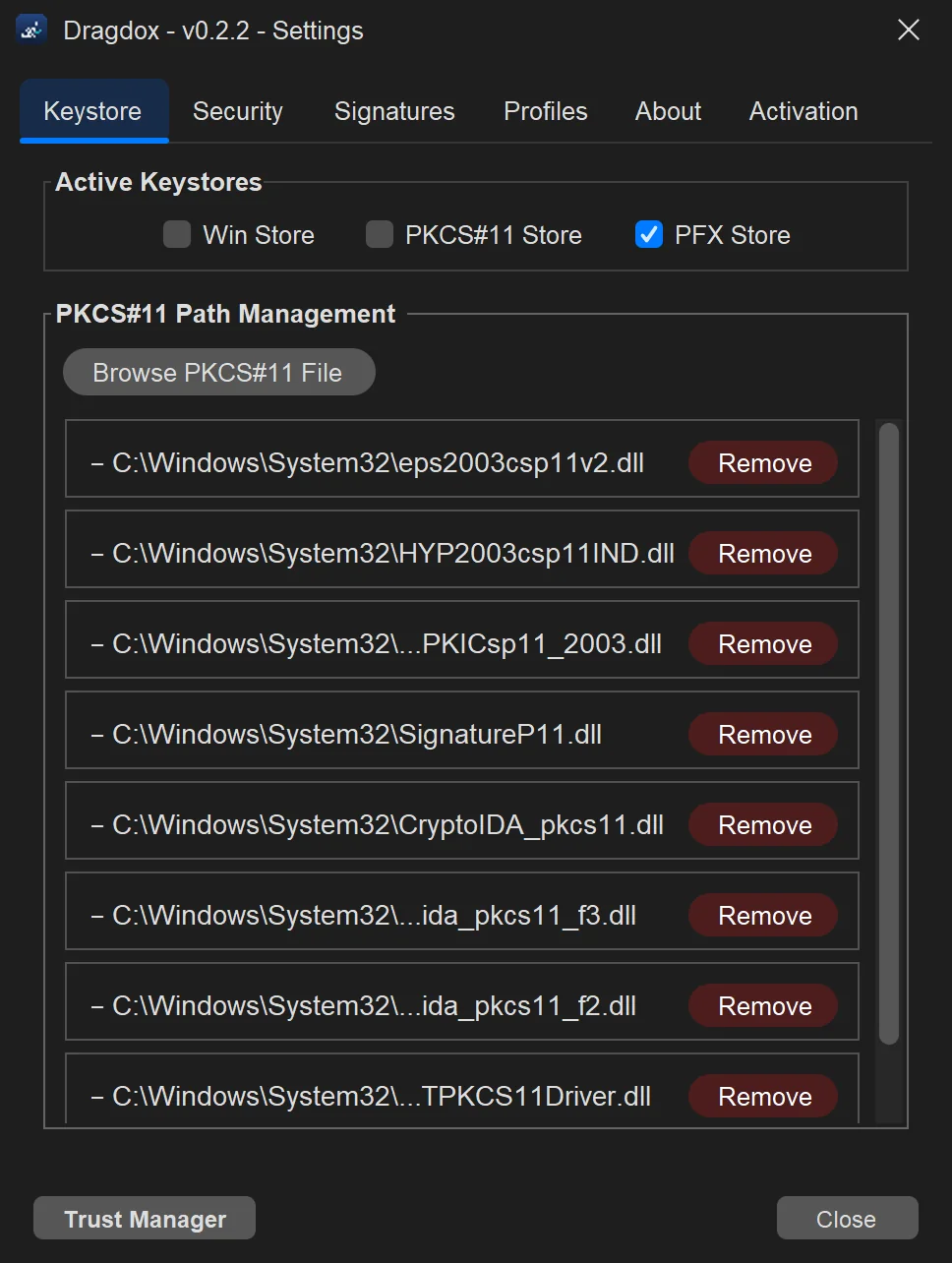
3. Digitally sign the PDF and save a signed copy
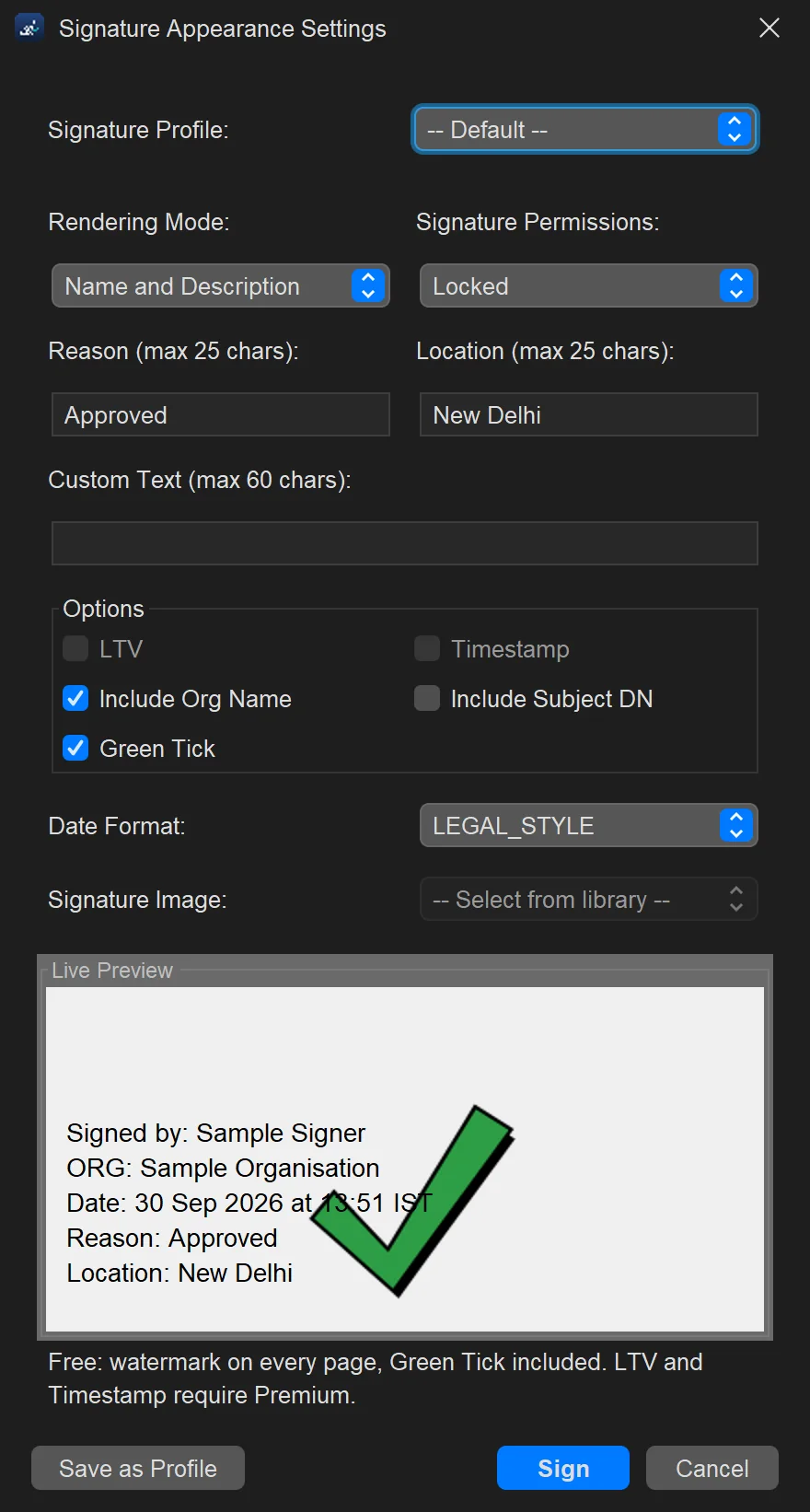
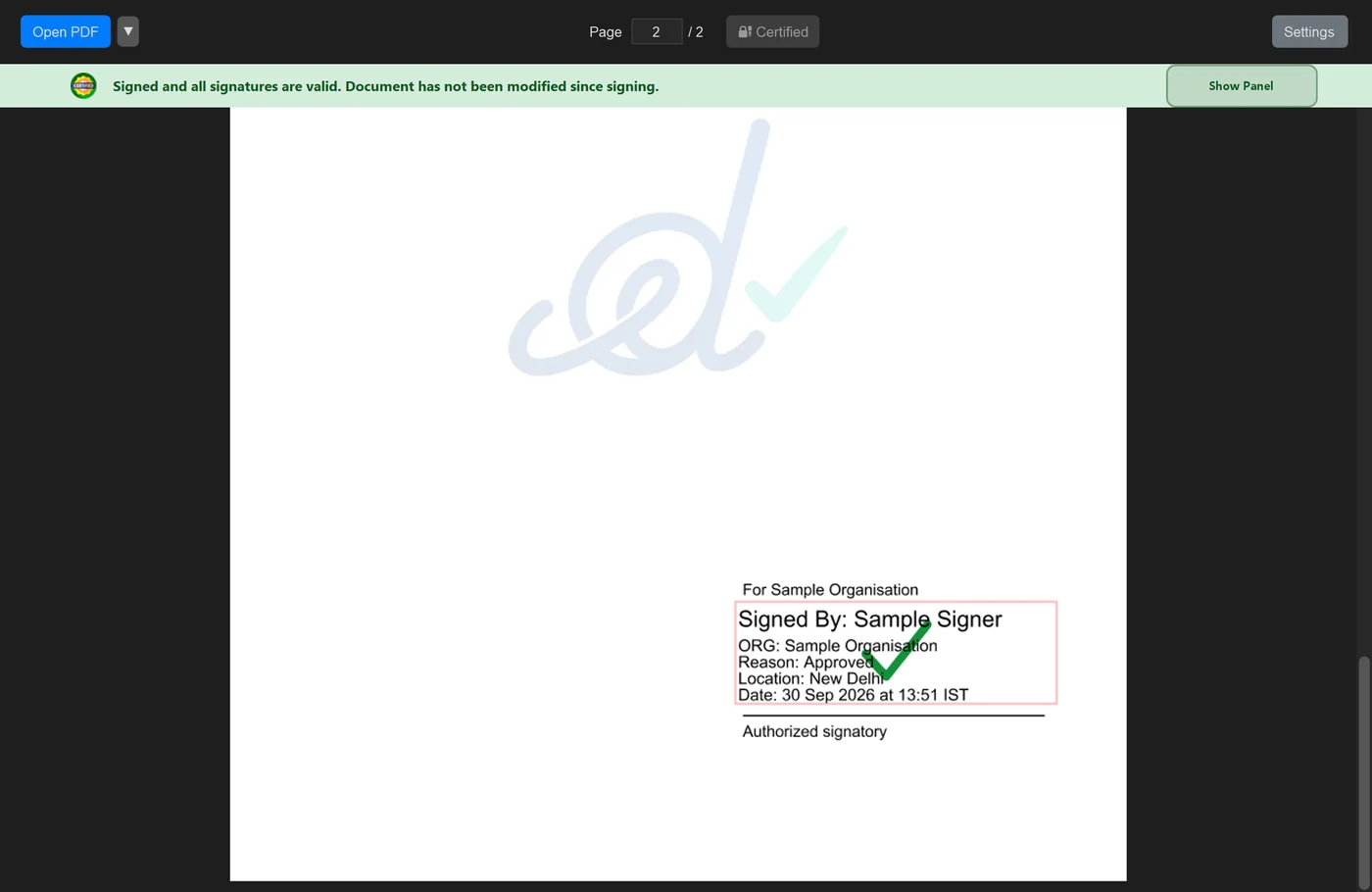
Open your PDF, select a signing certificate, and choose the signature location or an available existing signature field. Adjust text or graphic appearance and save the signed copy.
Free mode embeds a light logo into page content before the digital signature is calculated. It is not a selectable comment stamp. Additional signatures reuse existing watermarks. Certified PDFs are restricted from further signing.
4. Activate Premium signing
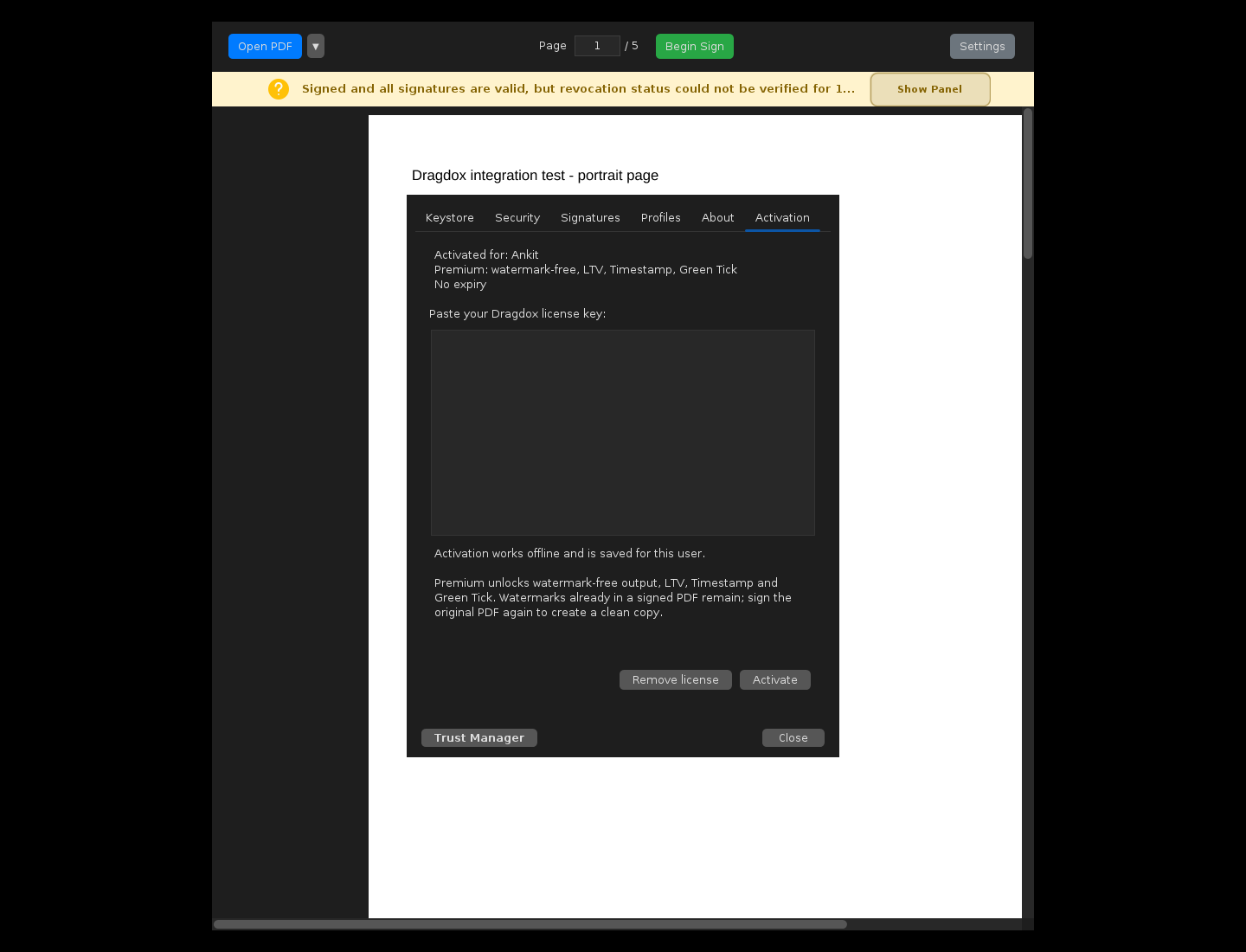
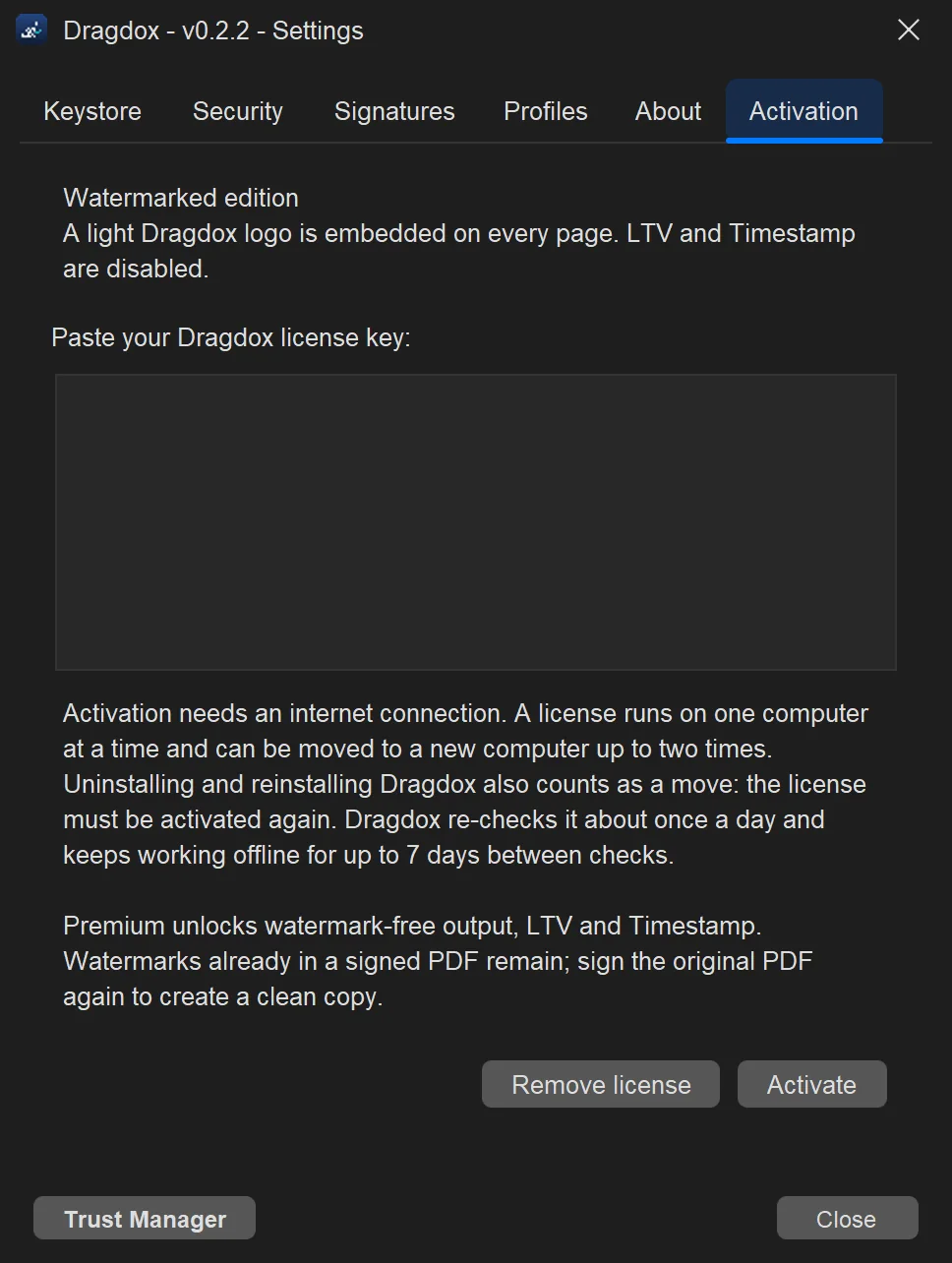
After a verified purchase, download your key from the order page. Open Settings → Activation, paste the entire key, and select Activate. Keep a private backup of the key.
Activation needs an internet connection. A license runs on one computer at a time; activating it on a new computer moves it there, and a license can be moved up to two times (three computers in total). After that the key stops working. Uninstalling and reinstalling Dragdox also counts as a transfer: the license must be activated again. Dragdox re-checks the license about once a day and keeps working offline for up to 7 days between checks. New signed outputs will not receive a Dragdox watermark, and LTV and Timestamp become available in the signature appearance dialog. These options remain visible but disabled without an active license. To get a clean version of an already watermarked file, sign the original unwatermarked PDF again.
5. Troubleshooting common signing problems
License cannot be verified
Check that the complete key was pasted and that your system clock is correct. An invalid or expired stored key blocks signing with a visible error; replace it or remove it in Activation to return to free mode.
Token or certificate unavailable
Confirm your password/PIN and driver library path. Actual hardware-token compatibility depends on the vendor driver and device.
Certificate trust or timestamp errors
Trust depends on certificate validity, chain and the verifier’s settings. Timestamping and online certificate checks need network access. The inherited GUI does not verify password-protected PDFs.
App does not launch
On Windows, check that you installed the 64-bit setup on Windows 10 or 11, then start Dragdox again from the Start menu. On Linux, run dragdox from a terminal to see its error, and check the Debian version, CPU architecture and graphical display. Preserve the message for support; do not share certificate passwords or private keys.